Employee Workspace: Timecard Approval for Managers and Supervisors
This article outlines how Managers and Supervisors approve their employees' timecards in the Employee Workspace.

Updated at July 31st, 2026
Manager/Supervisor Verification:
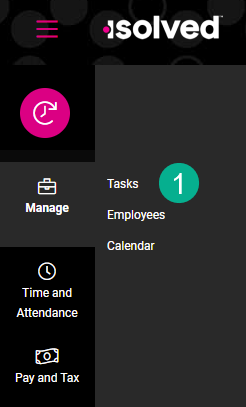
When a manager or supervisor logs into the Employee Workspace, they will see a Manage icon in the navigation pane on the left side of the page. To verify time cards:
- Start by clicking on the Tasks link
- If there are time cards ready to be approved, click the Review button in the Time Card section on the right-hand panel of the page to View and approve time cards
- On the next screen, scroll down to see a list of all employees whose time cards are ready for manager or supervisor approval
- If you want to approve multiple time cards in one action, click the pink Approve # icon to approve all, or check the individual employees in the "Your Approval" column
- If you want to review and approve an individual employee, click on the employee's name in blue.
- Click the pencil icon under Verification Status to approve the time cards for the pay period
- You may expand the work day to see the In/Out time by clicking the pink carrot icon to expand or collapse the day


If you have followed the above steps and do not see your employees under the Tasks or Time Card screens, it's likely that you'll need to switch into either Manager or Supervisor mode, depending upon how your company is set up.
The Manager/Supervisor button is in the upper-right hand corner of the Tasks screen:


To verify which mode you're in, check the color of the button. Manager Mode will be blue, while Supervisor Mode will be yellow.
Once you switch into your new mode, your employees should be visible on the Tasks and Time Cards screen.